An IPTV service gives you access to streams. The player app is what you actually use every day: it shows the channel list, the TV guide, on-demand menus and the video itself. A good player makes everything feel quick and organized; a poor one makes even a great service frustrating. Here is what to look for when choosing one.
- Check the player supports your login type, ideally Xtream Codes as well as M3U.
- A fast, readable TV guide (EPG) matters more than extra features.
- Hardware decoding and good HDR handling keep 4K smooth.
- Favorites, groups and search save time every day.
1. Platform availability
Start with the players available on your device. Fire TV, Google TV and Android TV boxes have the widest choice. Apple TV, iPhone and iPad have a strong selection in the App Store. Samsung and LG smart TVs have fewer options, though several capable players exist for each.
If you use several screens, a player available on all of them gives you a consistent experience. Our devices page lists the platforms we support.
2. Login support
Most players accept an M3U playlist link. Many also support Xtream Codes logins, which usually load faster and organize live TV, movies and series into separate sections. If you have the choice, pick a player that supports both. Our comparison of M3U and Xtream Codes explains the difference.
3. The TV guide (EPG)
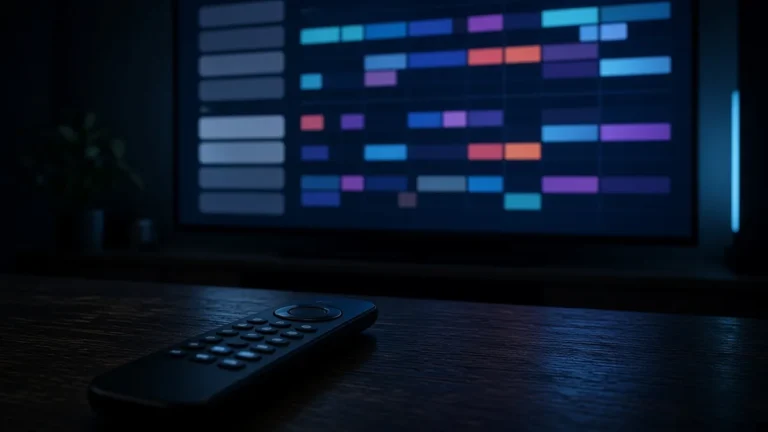
The electronic program guide is where you will spend a lot of time. Look for:
- A grid view that scrolls smoothly, even with many channels.
- Clear text that is readable from the sofa.
- Quick jumping between days and channel groups.
- Automatic guide updates, so you do not need to refresh it by hand.
Some players let you adjust the guide time offset if listings appear shifted by an hour or more, which is useful across US time zones.
4. Playback quality and decoding
For 4K streams, the player should use your device’s hardware decoder. Look for a decoder setting with options such as Hardware, HW+ or Software, and keep it on hardware by default. Good players also handle HDR properly and offer settings for aspect ratio, audio track and subtitles.
Useful playback features
- Audio track selection for channels with multiple languages.
- Audio delay adjustment to fix lip-sync problems.
- Buffer size settings to smooth playback on less stable connections.
- Picture-in-picture or multi-view for following more than one game.
5. Organization tools
Large channel lists need organizing. A good player lets you:
- Add favorites and reorder them.
- Hide channel groups you never watch.
- Search by channel name or program title.
- See recently watched channels.
Our guide to setting up favorites, groups and the TV guide shows how to use these features.
Parental controls
If children use the TV, look for a player that can lock channel groups or on-demand categories behind a PIN. Some players also let you hide adult categories entirely so they never appear in lists or search results. Check where the PIN is stored and how to reset it, so you are not locked out yourself. A player with clear profile or lock settings saves a lot of supervision later.
6. Interface and remote control
A player built for TV screens is designed around a remote. Menus should be easy to move through with the directional pad, and channel up and down should work from the video screen. Phone-first apps ported to TV can be awkward to use from the sofa.
7. Updates and support
Pick a player that is actively maintained. Regular updates fix bugs, improve decoding and keep up with new device software. Check when the app was last updated in your app store and whether the developer has a help page.
8. Price
Some players are free, some show ads and some charge a one-time fee or subscription for premium features. A modest fee is often worth it for a faster, more reliable player you will use daily. Note that the player is separate from your IPTV plan; the app does not include any content by itself.
How to test a player
- Install it and log in with your details.
- Time how long the channel list and guide take to load.
- Change channels quickly and watch for delays or freezes.
- Play a 4K channel and check for smooth motion and correct colors.
- Try adding favorites and hiding groups.
- Use it for a few evenings before settling on it.
For device-specific setup, follow our guides for Fire TV, Apple devices and Samsung TVs.
Signs it is time to switch players
Sometimes the problem is not the service or the connection but the app. Consider trying another player if the guide takes a long time to appear every time you open it, if the app freezes when you change channels quickly, or if it has not been updated in a long time. Switching is usually simple: install the new player, enter the same login details and rebuild your favorites. Keep the old player installed for a few days so you can compare.
Frequently asked questions
Does the player app affect picture quality?
It can. Players that use hardware decoding and handle HDR correctly deliver a cleaner, smoother picture. A player that falls back to software decoding may stutter on 4K.
Do I have to pay for a player?
Not always. Free players exist on most platforms. Paid players often offer faster interfaces, better guides and no ads, which many people find worthwhile.
Can you recommend a player for my device?
Yes. Tell us your device on WhatsApp and we will suggest players that work well with it and send setup steps.
Want a player recommendation?
Send us your device model on WhatsApp. We will suggest a player that suits it and walk you through the login.