Most streaming problems people blame on their service actually start at home: a router in a cabinet, a crowded Wi-Fi channel or a device on the wrong band. You do not need to be a network engineer to fix these. This guide covers the router and Wi-Fi settings that make the biggest difference for IPTV, in plain terms.
- Place the router centrally, in the open and up off the floor.
- Connect streaming devices to 5 GHz or 6 GHz, not 2.4 GHz, when they are in range.
- Use Ethernet for the main TV if you can.
- Keep router firmware updated and restart it occasionally.
Start with router placement
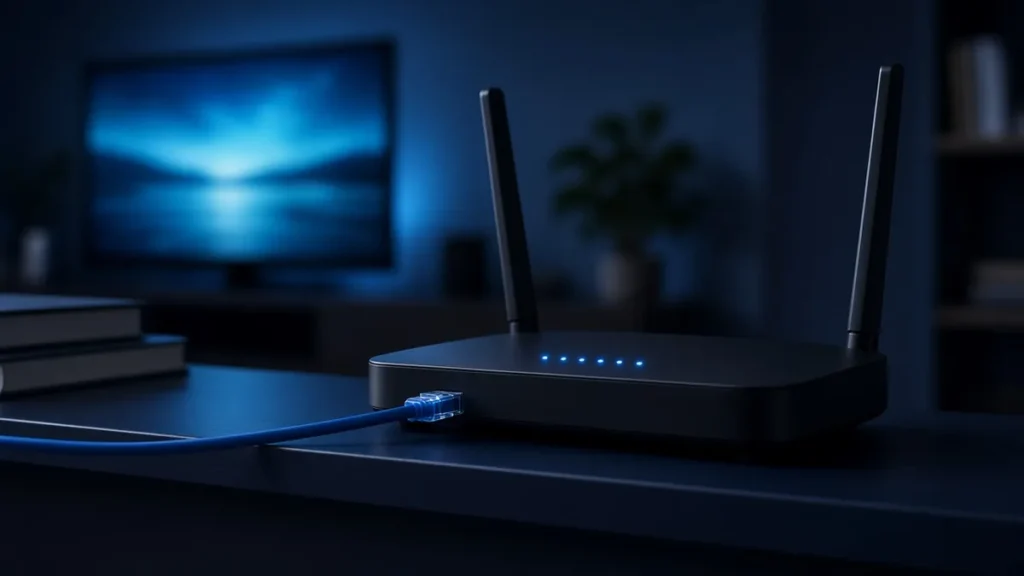
Wi-Fi signals weaken through walls, floors, mirrors, fish tanks and metal furniture. A router hidden in a cupboard or behind the TV loses a lot of range before the signal even reaches the room.
- Put the router in a central, open spot.
- Raise it off the floor, on a shelf or table.
- Keep it away from microwaves, cordless phone bases and large metal objects.
- Point external antennas in different directions, one vertical and one horizontal.
Choose the right Wi-Fi band
Modern routers broadcast on more than one frequency band:
- 2.4 GHz travels further and through walls better, but it is slower and often crowded by neighbors’ networks and household devices.
- 5 GHz is faster and less crowded, with shorter range. It is usually the best choice for streaming in the same or next room.
- 6 GHz (Wi-Fi 6E and Wi-Fi 7) is faster again and very uncrowded, but needs compatible devices and works best at short range.
If your router uses one network name for all bands (“band steering”), devices choose automatically. If a streaming stick keeps connecting to 2.4 GHz, you can give the 5 GHz band its own name in the router settings and connect the stick to that name directly.
Pick a less crowded channel
In apartments and dense neighborhoods, many networks compete for the same channels. Most routers choose a channel automatically, but some get stuck on a busy one.
- Log in to your router’s app or web page.
- Find the wireless settings for each band.
- Try an automatic channel scan, or pick a different channel manually.
- Test streaming for an evening before changing again.
Use Ethernet where it counts
A cable avoids interference completely. If the router is near the TV, connect the streaming device or TV with an Ethernet cable. For sticks without a port, a USB Ethernet adapter usually works. Our article on Wi-Fi vs Ethernet for IPTV explains when a cable makes the biggest difference.
If running a cable is impractical, consider:
- Mesh Wi-Fi: a satellite unit near the TV, ideally connected back to the router by cable.
- Powerline adapters: send network data over your home wiring. Results vary with your electrical setup.
- MoCA adapters: use existing coaxial TV cable, common in US homes, to carry a wired connection.
Router settings worth checking
Firmware updates
Router makers release updates that fix bugs and improve stability. Turn on automatic updates if available, or check for updates every few months.
Quality of Service (QoS)
QoS lets the router prioritize certain devices or traffic. If large downloads or game updates slow down your streams, give the streaming device higher priority. Keep it simple: prioritizing one or two devices is usually enough.
Channel width
Wider channels on 5 GHz can be faster but are more prone to interference in busy areas. If streams are unstable, try a narrower width and compare.
DNS
Your router uses your internet provider’s DNS by default. Changing DNS rarely improves streaming speed, but if you have trouble with apps loading, testing a different well-known DNS service is a simple step.
Change one thing at a time
It is tempting to change every setting at once, but that makes it impossible to know what helped. Make one change, then watch your usual channels for an evening, ideally at the busiest time of day. Note what you changed and whether things improved. If a change makes no difference or makes things worse, put it back before trying the next one. A short written log of changes also helps if you later contact your internet provider or ask us for help, because it shows what has already been ruled out.
Restart, but not constantly
Restarting the router clears temporary problems and memory leaks. Once every week or two is plenty. If you have to restart it every day to keep streaming stable, the router may be overheating, outdated or simply too weak for your household.
Check the whole household
Several 4K streams, video calls and large downloads at once can saturate any connection. If problems happen only at busy times, see our guide to planning home bandwidth for several screens. Our help page on fixing buffering covers more steps, and device-specific network tips are in our Fire TV and Android TV box guides.
Frequently asked questions
Should my streaming device use 2.4 GHz or 5 GHz?
Use 5 GHz, or 6 GHz if supported, when the device is reasonably close to the router. Use 2.4 GHz only if the device is far away and cannot hold a stable 5 GHz signal.
Do I need a new router for IPTV?
Not always. Better placement, the right band and a wired connection often fix problems. If your router is many years old or struggles with several devices, a modern Wi-Fi 6 or mesh system can help.
Will a faster internet plan fix buffering?
Only if your connection is already fully used. Most buffering comes from weak Wi-Fi or interference inside the home, which a faster plan does not fix.
Still seeing buffering?
Tell us your device and how it connects on WhatsApp. We will help you find the cause before you change anything else.