A full IPTV channel list can be long, and scrolling through it every evening gets old quickly. A few minutes spent setting up favorites, channel groups and the TV guide turns it into something that feels like your own lineup. This guide covers the steps that work in most popular player apps.
- Hide the channel groups you never watch.
- Build a favorites list of the channels you use most, in your preferred order.
- Make sure the TV guide (EPG) loads and shows the right times.
- Use search and recent channels to find things quickly.
Step 1: Hide groups you do not need
Channels are usually organized into groups, often by country, language or genre. Most players let you hide whole groups from the list. This is the fastest way to shorten the list and speed up loading.
- Open the player’s settings and look for options named Manage groups, Hide categories or Edit playlist.
- Untick groups you never watch, such as languages you do not speak.
- Save and return to the channel list.
Hidden groups are not deleted. You can bring them back at any time from the same menu.
Step 2: Create a favorites list
Favorites give you a short list of the channels you watch most. In most players you add a channel by highlighting it and long-pressing the select button, or by pressing a menu or star button on the remote.
Tips for a useful favorites list
- Start with ten to twenty channels. You can always add more.
- Reorder them so the ones you use daily are at the top.
- Some players support several favorites lists, such as one for news and one for sports.
- Set the player to open in favorites by default if the option exists.
Step 3: Get the TV guide working
The electronic program guide (EPG) shows what is on now and next. If you log in with Xtream Codes, the guide usually loads automatically. With an M3U playlist, you may need to paste a separate EPG link into the player’s settings. Our comparison of M3U and Xtream Codes explains why.
If the guide is empty
- Refresh or update the EPG from the player menu.
- Wait a few minutes after the first load; guide data can be large.
- Check the EPG link has no extra spaces or missing characters.
- Restart the app after updating guide settings.
Our help page on guide problems lists more fixes.
If times are wrong
Listings may appear shifted if the device’s time zone is wrong or the player uses a different offset. First check the date, time and time zone on your device. If the guide is still off, look for an EPG time shift or offset setting in the player and adjust it by the number of hours needed.
Step 4: Use the guide view that suits you
Most players offer more than one way to browse:
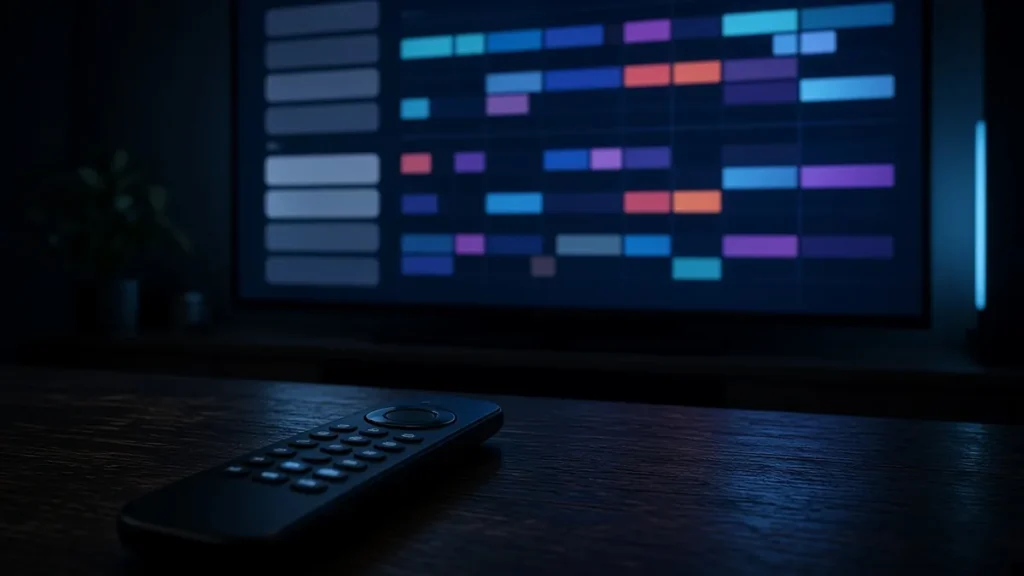
- Grid view shows several channels and hours at once, like a cable guide.
- List view shows channels with the current program beside each one.
- Mini guide appears over the video when you press up or down, so you can browse without stopping playback.
Try each for a day or two. Many people use the mini guide for quick changes and the grid for planning an evening.
Step 5: Search, recents and reminders
Search helps you find a channel or program by name without scrolling. A recently watched list makes it easy to jump back to the last few channels. Some players also let you set a reminder for a program in the guide, which is handy for games and live events.
Step 6: Back up your setup
Favorites and hidden groups are usually stored in the player on that device. If you reinstall the app or move to a new device, they may be lost. Check whether your player offers a backup, export or cloud sync option, and use it after you finish setting up.
Keep it fast
A tidy setup also loads faster. Hiding groups you do not watch reduces the amount of data the player handles. If your guide still feels slow, a faster device can help. Our guide to choosing a streaming device covers memory and processing, and our setup guides include device-specific tips for Fire TV and other platforms.
Setting up for the whole household
If several people share the TV, consider separate favorites lists for each person or each kind of viewing: one for news, one for sports and one for children’s channels. Some players support profiles, each with its own favorites and parental settings. Agree on a default list that opens when the app starts, so nobody has to scroll through someone else’s channels first. This small step makes the TV easier for guests and relatives to use as well.
Frequently asked questions
Why did my favorites disappear?
Favorites are usually stored inside the player app. Reinstalling the app, clearing its data or switching devices can remove them. Use the player’s backup or sync feature if it has one.
Why is the TV guide an hour off?
Check the time zone on your device first. If it is correct, use the player’s EPG time shift or offset setting to line up the listings.
Can I rename or reorder channels?
Many players let you reorder favorites, and some let you rename channels or change logos. Look in the favorites or playlist editing options.
Want help organizing your lineup?
Message us on WhatsApp with your player app and device. We will point you to the right settings for favorites and the guide.